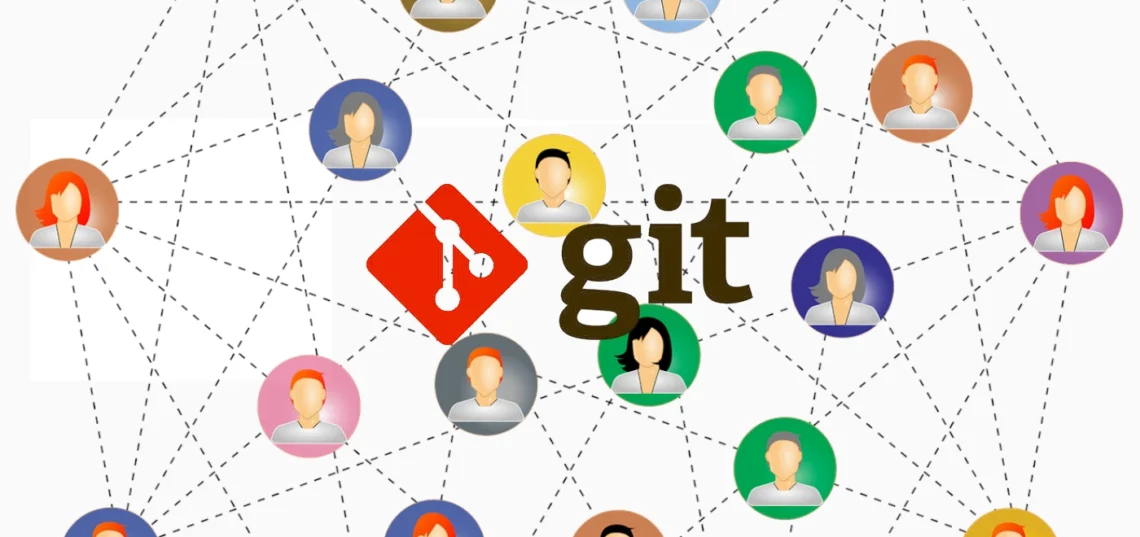
Git is a version control tool that helps you track changes in your projects. It saves every version of your work so you can go back if something goes wrong. Git also makes it easy for multiple people to work on the same project at the same time without overwriting each other’s changes. In this tutorial, we’ll cover the basic commands and how to get what you need to get started with Git!
The Easy Way:
If you’re on Windows or Mac and wish to work specifically with github, you can install Github Desktop(there’s also an unofficial version for Linux). It’s an easy to use interface which allows to do basically everything taught in this tutorial with a few clicks.

The Better way:
1. Introduction to Git
- Version Control: Git tracks changes in files and allows you to revert to previous versions.
- Distributed System: Every developer has a complete copy of the repository, so work can continue even when offline.
- Collaboration: Git makes it easy to work with others by merging changes from different contributors.
2. Installing Git
Before you start, ensure Git is installed on your machine.
- Windows: Download from git-scm.com and follow the installer.
- macOS: Install via Homebrew with
brew install gitor download the installer. - Linux: Use your package manager, for example:
sudo apt-get install git
3. Configuring Git
After installation, set your global username and email. These details appear in your commits.
git config --global user.name "Your Name"
git config --global user.email "your.email@example.com"
You can verify your configuration with:
git config --list4. Creating and Managing Repositories
a. Creating a New Repository
To start tracking a project with Git, navigate to your project folder and run:
git initThis command creates a new subdirectory named .git that contains all of your version history.
b. Cloning an Existing Repository
To get a copy of an existing repository (including its history), use:
git clone <repository_url>For example:
git clone https://github.com/username/repository.git5. Basic Git Workflow
a. Checking Repository Status
Before making changes, check the status of your working directory:
git statusThis command shows modified, untracked, or staged files.
b. Staging Changes
When you modify files, you need to stage them before committing. To stage a specific file:
git add filenameTo stage all changes:
git add .c. Committing Changes
After staging, commit your changes with a descriptive message:
git commit -m "Describe what you changed"Commits create snapshots of your project’s history.
d. Viewing Commit History
To view the commit history, use:
git logFor a more compact view:
git log --oneline6. Working with Branches
a. Creating a Branch
Branches allow you to work on different features or fixes separately:
git branch feature-branchb. Switching Between Branches
To switch to another branch:
git checkout feature-branchc. Merging Branches
Once your work on a branch is complete, merge it back into your main branch (often named main or master):
- Switch to the main branch:
git checkout main - Merge the feature branch:
git merge feature-branch
d. Deleting a Branch
After merging, you can delete the branch if it’s no longer needed:
git branch -d feature-branch7. Synchronizing with Remote Repositories
a. Adding a Remote Repository
If your project is hosted remotely (e.g., GitHub), add the remote repository:
git remote add origin <repository_url>b. Pushing Changes
To push your commits to the remote repository:
git push origin mainIf you’re pushing a new branch for the first time:
git push -u origin feature-branchc. Pulling Changes
To fetch and merge changes from the remote repository into your current branch:
git pulld. Fetching Updates
If you want to check for remote changes without merging, use:
git fetch8. Additional Useful Commands
- git diff: Shows the differences between your working directory and the staging area.
git diff - git reset: Unstages a file or resets the repository to a previous commit.
- Unstage a file:
git reset filename - Reset to a specific commit (use carefully):
git reset --hard <commit_hash>
- Unstage a file:
- git stash: Temporarily saves changes that aren’t ready to be committed.
git stashTo reapply stashed changes:git stash pop - git remote -v: Lists all configured remote repositories.
git remote -v
9. Best Practices
- Commit Often: Small, frequent commits make it easier to track changes and debug.
- Write Clear Commit Messages: Describe the “what” and “why” of your changes.
- Keep Your Branches Organized: Use branches for new features, bug fixes, or experiments.
- Regularly Pull Updates: Stay in sync with your team’s changes to avoid conflicts.
- Review Changes: Use
git diffandgit statusfrequently to ensure you understand what has changed.
Conclusion
This should cover the basics of Git, including installation, configuration, repository creation, basic workflow, branching, and syncing with remote repositories. With these fundamentals, you can manage your project’s version history effectively and collaborate with others. As you grow more comfortable with these commands, explore advanced topics like rebasing, cherry-picking, and conflict resolution to further enhance your Git skills.
Happy coding!
Like my content? Support me with a tip!