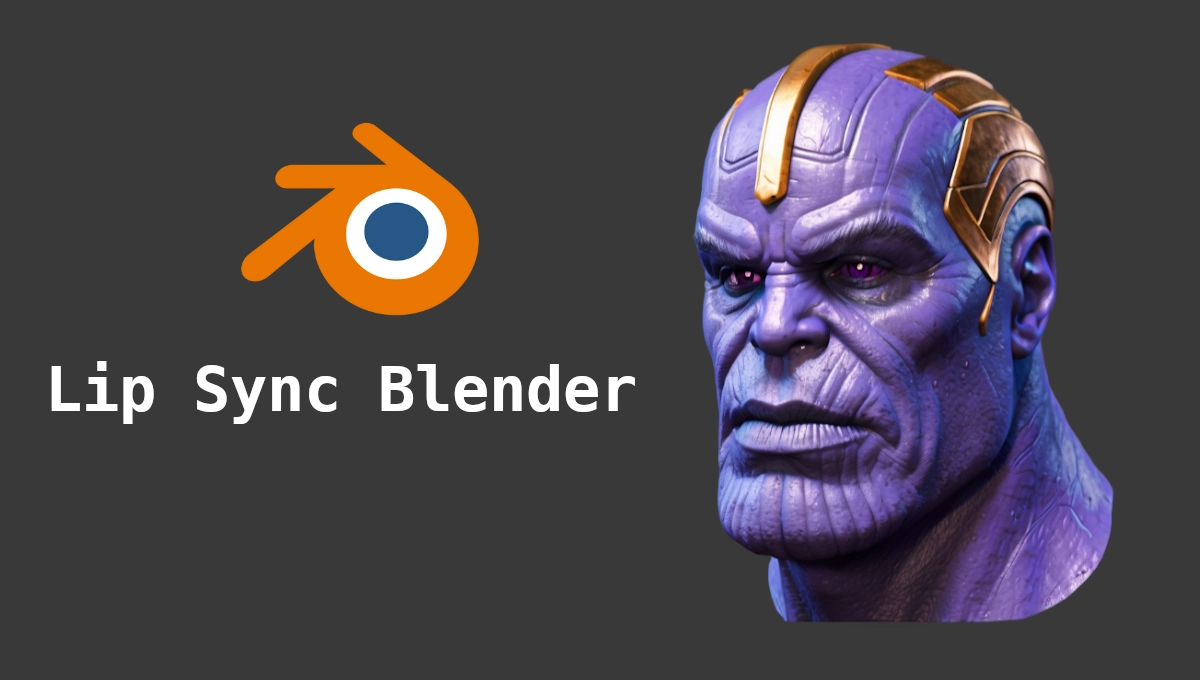
Getting a character’s mouth to move perfectly in time with spoken audio brings your animations to life. In this tutorial, you’ll learn how to set up Blender’s lip-sync tools, import and align your dialogue track, and adjust shape keys for natural mouth movements.
Setting up
The setup is very simple. First, open blender, go to Edit -> Preferences -> Add-ons and find one called “Lip Sync”. Click install.

After, go to Get Extensions, right above, and enable it
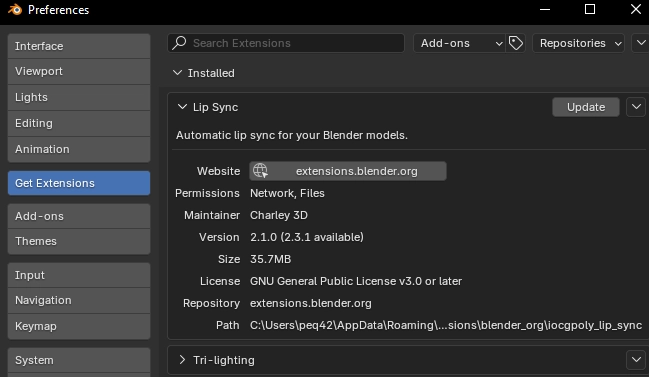
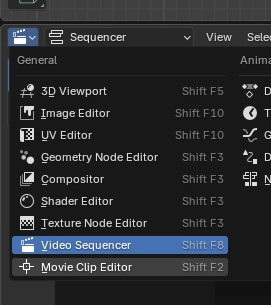
Congratz! You have the extension installed and active. Now, for lip syncing, you’ll obviously need an audio file with voice in it. Record something on your PC or download from somewhere on the internet, then at the bottom of your blender screen, click the top-left button and select “Video Sequencer”
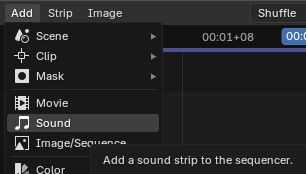
Now click add -> sound and select the audio file
Drag the audio in the timeline to your preferred position(wherever the voice starts in the audio is where the lip-syncing will start) and boom, all setup done!
Syncing
Now to do the actual sync. First, know you’ll need shape keys for each individual sound, in the language you chose(In my case, the model I’m using already comes with them setup). Select your model on the editor screen, then on the right, click Lip Sync
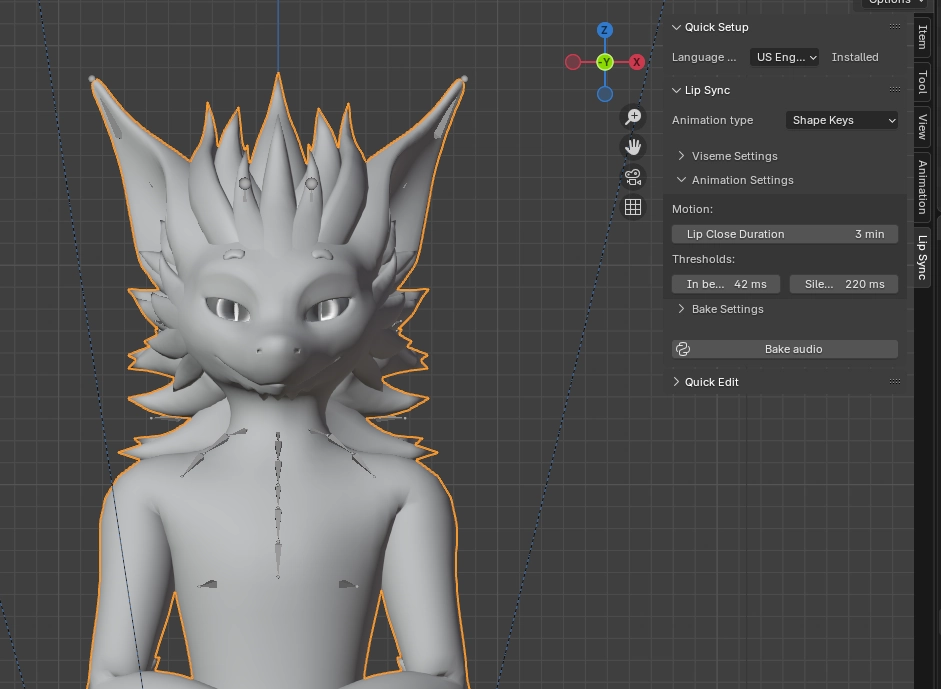
There will be a few settings immediately shown. First, since I spoke in english on my recording, I selected the language as “english”. After that, change animation type to “Shape Keys”, and select each matching shape key and viseme like this(leave ones you dont have/use as None):

Adjust your thresholds(time to open/close mouth and whatnot) and click “Bake Audio”
If everything worked, you should see your timeline(you’ll have to change the bottom part back to timeline) with a bunch of keyframes, and if you click play…
You have Lip Sync!
Now this is a very simple tutorial, and its dependant on shape keys existing to work. On top of that, this method is a little limited, requiring the process to be repeated over and over if there are multiple audio files/characters in a scene. This, however, is honestly a lot better and easier than almost anything I could find online, and everything is found within blender itself, so I decided to share as I myself have struggled not too long ago trying to figure out lip sync for my animations and nobody I’m friends with knew how to easily do it.
Enjoy!
Like my content? Support me with a tip!