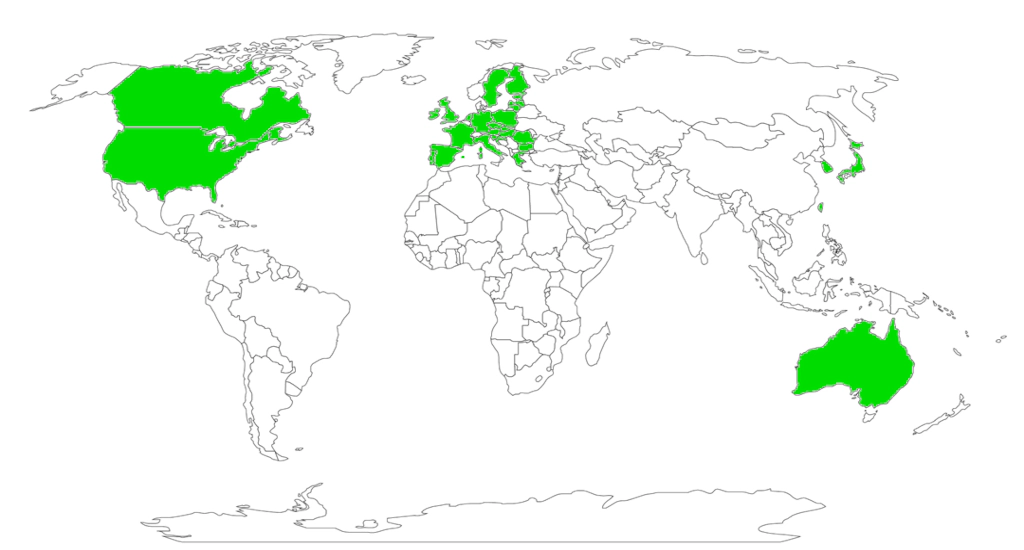
Age verification is an idiotic law that has spread like cancer throughout a few countries, of which population doesn’t understand how easily their identities can be stolen when you give them freely to every online service they use.
In this tutorial, we’ll learn how to avoid such stupid cancer, lobbied by Meta and other giant companies.
What You Need
- An active subscription to a VPN service (this guide uses NordVPN as the example).
- The VPN application installed on your device (smartphone, computer, or tablet).
The idea is simple: A VPN will mask your location, so no application will know where you live and so you get free access to the content you already had before.
Step-by-Step Guide
Step 1: Open the VPN Application Launch the NordVPN app on your device and ensure you are logged into your account.
Step 2: Identify an Unrestricted Region Age verification blocks are triggered by your IP address, which reveals your physical state or country to the website. To avoid the prompt, you need to route your connection through a place that does not have these laws. Decide on a state or country known to be unrestricted.
Step 3: Select Your New Location In the NordVPN app, look at the server map or the text-based country list.
- To change states: Scroll down to the United States, open the regional list, and select a state without an age-check mandate.
- To change countries: Select a different country entirely (for example, Canada, Switzerland, or Japan) from the global map.
Step 4: Connect to the Server Click or tap on your chosen location. The app will take a few seconds to establish an encrypted connection. Once the app says “Connected,” your device is now broadcasting a new IP address matching that specific location.
Step 5: Clear Your Digital Footprint (Optional but Recommended) Open your web browser. To ensure the website doesn’t remember your true location from a previous visit via cookies, open an “Incognito” or “Private Browsing” window(You may also just clear your cookies).
Step 6: Access the Website Type the address of the website you want to visit. Because the website’s system now thinks you are physically located in the unrestricted state or country you selected in Step 3, the age verification checkpoint will not trigger. You will be able to browse the site normally.
Troubleshooting
If the age verification prompt still appears, the website may have recognized that specific VPN IP address. To fix this:
- Close your browser.
- Open NordVPN and click “Disconnect.”
- Select a different server or region and connect again.
- Reopen your browser and try the website one more time.
 Buy me a Ko-fi
Support this blog ❤️