
For those who play VRChat and want to know how it’d work on Linux, here’s a nice little FAQ I’ve compiled to help out:
As a tl;dr: VR on Linux has improved a lot over the years and, specially for the most popular games, it works pretty well if not better than on Windows in a lot of cases, but not every single one. Just make sure to keep things updated, as unlike windows, updates actually fix and improve things!
Does it work?
Yes, and better than on Windows on average(specially performance). Video players are the only thing that sometimes break(at least nowadays, might not be an issue by the time you read), but there’s an easy way around: Proton-RTSP.
Download it(the .tar.gz file), go to your ~/.steam/steam/compatibilitytools.d/ folder, extract the .zip file there and restart steam. Now right click VRChat on steam’s library > Properties > Compatibility > “Force the use of a specific Steam Play compatibility tool” > Select that new proton version there.
Boom. Now your video player not only works, but its far less likely to show you a black screen like it does on Windows.
And if for some reason it still has some issues, VRCVideoCacher works on Linux.
How to upload avatars?
Same as Windows. Unity and Unity Hub have native support, with only creator companion not. However, creator companion sucks, as everyone can tell you, and there’s a free alternative that looks the same: ALCOM
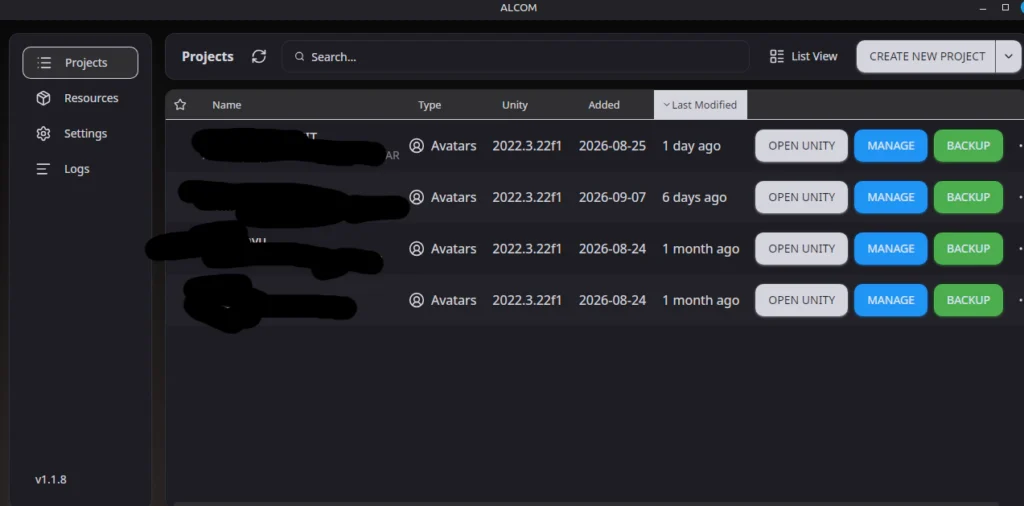
Just download the .AppImage, put anywhere you’d like(its like a .exe program), Right click > Properties > Permissions > “Allow executing file as program”.
That’s it. It looks the same as VRChat’s creator companion, but runs faster and gets updates that actually improve things
I have Quest, what to use?
If you have a quest, the best thing you can use is WiVRn for streaming the game and WayVR for play space + Overlay. You can use Steam Link, but it can be buggy at times, as is most of valve software.
Honestly both WiVRn and WayVR require no explanation. You download the first on your PC, download the app on quest, link them together like you would with virtual desktop, and that’s it.
For WayVR, you just download the .AppImage, do the same as the last question ( Right click > Properties > Permissions > “Allow executing file as program”.) and that’s it. Throw it somewhere you won’t forget and go to WiVRn settings to add it to “auto starts”. That’s it, every time you connect to WiVRn, it will also open WayVR and you’re good to go.
Play Space Mover? Overlay?
The same overlay I recommended for Quest headsets above, WayVR, works with any headset and also has play space drag built in. However, if you aren’t using WiVRn as your streamer, then it is a tiny bit more complicated to setup.
Check their README for up-to-date instructions.
Alternatively, the most known option, OVR Advanced Settings, also works, though some users report it being a little unstable.
I’ve a very specific question?
If you’ve a very specific question that I couldn’t think about, there’s a nice discord community called “Linux VR Adventures” which anyone can join and ask/answer questions!
Just remember to be nice and patient.
 Buy me a Ko-fi
Support this blog ❤️